> ## Documentation Index
> Fetch the complete documentation index at: https://www.vobiz.ai/docs/llms.txt
> Use this file to discover all available pages before exploring further.
# Zendesk integration
> Put a Vobiz softphone in the Zendesk top bar - click-to-call, screen pop, call logging to tickets, and recording playback for agents in 130+ countries.
**Scope:** inbound and outbound, with browser audio over WebRTC. Call logs are written through the standard Tickets API, so this works on any Zendesk Support plan rather than requiring Talk Partner Edition.
## What you get
| | |
| - | - |
| **Click-to-call** | Click a phone number anywhere in Zendesk and the softphone opens and dials |
| **Screen pop** | An inbound call is looked up by number, so the agent sees who it is before answering |
| **Call logging** | Direction, duration and notes written to the ticket the agent is viewing |
| **Recordings** | Playable from the ticket, behind an expiring link that carries no credentials |
| **Transcripts** | An optional webhook appends an AI transcript as a private comment |
| **Browser audio** | Calls run over WebRTC in the tab — no desk phone, no desktop app |
## How it works
The browser carries the **audio**; the backend carries the **credentials**. Your Vobiz Auth Token never reaches a third party and is never written into a ticket.
```text theme={null}
Zendesk agent browser Vobiz
top_bar the softphone ──HTTPS──▶ backend ──REST──▶ api.vobiz.ai
ticket_sidebar resolves the ticket ▲ │
background relays click-to-dial └──── webhooks ──────┘
│
└────── SIP over WebSocket ──────▶ wss://registrar.vobiz.ai:5063
```
### Three app locations, three jobs
A ZAF app can run in several places at once, and each instance is a **separate iframe with its own JavaScript context**. They share no variables and talk only through ZAF messaging.
| Location | File | Job |
| - | - | - |
| `top_bar` | `assets/index.html` | The softphone: SIP registration, dialpad, call UI, logging |
| `background` | `assets/background.html` | Invisible. Listens for Zendesk's `voice.dialout` and relays it |
| `ticket_sidebar` | `assets/sidebar.html` | Reports which ticket the agent is on |
**All three locations are required.** ZAF exposes `ticket.id` only to an instance that is in ticket context, and the top bar is global. Without the `ticket_sidebar` instance the app can never resolve a ticket, so every call log creates a brand-new ticket instead of commenting on the one the agent is looking at.
Click-to-dial arrives as Zendesk's `voice.dialout` event, which only reaches the `background` instance. That instance finds the `top_bar` instance and forwards the number to it over an app-internal event. `voice.dialout` fires only on accounts with Talk Partner Edition enabled — on other plans the manual dialpad still works.
## The outbound call flow
**The order cannot be reversed.** Originating to the customer over the REST API and then bridging the agent in with [``](/docs/xml/dial/user) is blocked platform-side: Vobiz builds a gateway URI it cannot itself parse and drops its own INVITE (`tr_eval_uri(): invalid uri`, `blocking gw`). The customer answers, hears ringback, then *"the agent could not be reached"*.
That design is what this app used to do. It was removed in the 17 September 2026 rewrite. Inbound is the exception — `` is the only way to reach a registered endpoint, and it works.
### The answer XML
```xml theme={null}
91XXXXXXXXXX
```
| Detail | Why it matters |
| - | - |
| `` is a **sibling before** ``, self-closing | FreeSWITCH rejects the nested form and the caller hears a bogus *Busy* |
| `action` + `redirect="false"` | Without both, Vobiz re-fetches the answer URL when `` ends and re-executes the document — one call dials the customer over and over |
| `Event=Hangup` guard | A hangup notification is not a request for instructions. Returning `` hands Vobiz a fresh call leg after the call has already ended |
One handler serves both directions; which one it is is decided by who the call is **from**. A `sip:` URI (or `RouteType=sip`) means the browser dialled out.
### Diagnosing from the CDR
`hangup_cause_name` in the [CDR](/docs/cdr/get-cdr) tells you where a call stopped:
| Value | Meaning |
| - | - |
| `Normal Hangup` | The call completed |
| `End Of XML Instructions` | Vobiz fetched and ran the webhook, but the [``](/docs/xml/dial) had nothing to reach — usually an unregistered SIP endpoint |
| `No Answer` / `Busy` | The customer leg never connected, so the webhook was never fetched |
## Inbound calls
A call to one of your Vobiz numbers reaches the same `/answer` handler. `From` is a plain number rather than a `sip:` URI, so the handler takes the inbound branch and returns [``](/docs/xml/dial/user) naming the registered endpoint. The panel auto-answers.
```xml theme={null}
sip:agent-priya118…@registrar.vobiz.ai
```
**`callerId` is mandatory on the inbound branch.** Omit it and Vobiz derives it from the A leg — which on an inbound call is the *caller's* number, not one this account owns — so B-leg creation is refused silently and totally, and the browser never rings. Use the DID that was actually dialled, normalised to E.164.
Inbound into a registered WebRTC endpoint was blocked platform-side for two weeks and was **observed working on 17 September 2026**. The XML is correct either way, so nothing needs to change here if it regresses — but treat inbound as *watch* rather than settled.
## Requirements
| Requirement | Detail |
| - | - |
| Zendesk Support | Admin access, to install the app |
| Vobiz account | Auth ID, Auth Token, and at least one number — [console.vobiz.ai](https://console.vobiz.ai) |
| Node | 18 or newer, to run the backend |
| A tunnel | `cloudflared` or `ngrok`. Vobiz must reach your answer webhook from the public internet |
Every test places a real call and bills your balance. An outbound call bills **two legs** — the customer's and the agent's.
## Step 1: Create a SIP endpoint per agent
The softphone registers to Vobiz as a SIP endpoint. Each agent needs their own, or calls ring the wrong person. Create one in the console under **Voice → Endpoints**, or via [the API](/docs/endpoint/create-endpoint):
```bash theme={null}
curl -X POST "https://api.vobiz.ai/api/v1/Account/$VOBIZ_AUTH_ID/Endpoint/" \
-H "X-Auth-ID: $VOBIZ_AUTH_ID" \
-H "X-Auth-Token: $VOBIZ_AUTH_TOKEN" \
-H "Content-Type: application/json" \
-d '{"username":"agent-priya","password":"","alias":"Priya"}'
```
```json theme={null}
{
"alias": "Priya",
"endpoint_id": "375555448816999",
"username": "agent-priya1187694299145202883643"
}
```
Two things to catch here:
1. **Vobiz appends a numeric suffix** to the username you asked for. Use the value it returns, not the one you sent — registration is rejected otherwise.
2. **The password is never returned again.** Record it now.
Put the stored username and the password you chose into the backend's `.env` as `VOBIZ_SIP_USER` and `VOBIZ_SIP_PASSWORD`.
**Use a separate endpoint per integration.** An endpoint binds to exactly one Vobiz application at a time, so sharing one between Zendesk and another CRM silently breaks whichever was configured first.
## Step 2: Run the backend
```bash theme={null}
cd backend
npm install
cp .env.example .env
npm start # → http://localhost:8092
```
The backend is bound to one Vobiz account through `.env`: `VOBIZ_AUTH_ID`, `VOBIZ_AUTH_TOKEN`, `VOBIZ_FROM_NUMBER`, and the `VOBIZ_SIP_USER` / `VOBIZ_SIP_PASSWORD` from Step 1. Zendesk writes need `ZENDESK_SUBDOMAIN`, `ZENDESK_EMAIL` and `ZENDESK_API_TOKEN`.
The one value worth setting deliberately is `SIGNING_SECRET`:
```bash theme={null}
openssl rand -hex 32
```
Without it a random key is generated at each boot, and recording links written into tickets before the last restart stop resolving. `RECORDING_URL_TTL_SECONDS` controls how long those links stay valid, and `ALLOWED_ORIGINS` is a CORS allowlist rather than `*`.
## Step 3: Expose the backend
Vobiz fetches `/answer` to find out what to do with the call, so that URL has to be reachable from the public internet. Put the tunnel hostname in `PUBLIC_BASE` and restart.
```bash theme={null}
cloudflared tunnel --url http://localhost:8092
```
**Check the answer URL before touching any UI.** Send the shape an outbound call produces — a `sip:` caller:
```bash theme={null}
curl -s -X POST "https:///answer" \
-d "From=sip:x@registrar.vobiz.ai&To=91XXXXXXXXXX&RouteType=sip"
```
```xml theme={null}
91XXXXXXXXXX
```
Anything else — a tunnel error page, an ngrok interstitial — and every call dies silently with the symptom people blame on registration: the customer answers, hears ringback, then *"the agent could not be reached"*.
Quick tunnels get a **new hostname on every restart**, and the old one is recycled to somebody else. Fine for development; use a named tunnel or a real host for anything permanent.
If your backend sits behind an IP allowlist, see [IP whitelisting](/docs/concepts/ip-whitelisting).
## Step 4: Run the Zendesk app
```bash theme={null}
cd ../zendesk-app
cp zcli.apps.config.json.example zcli.apps.config.json
```
```json zcli.apps.config.json theme={null}
{
"parameters": {
"backend_url": "https://your-tunnel.example.com",
"agent_id": "priya"
}
}
```
**The filename matters.** `zcli` reads `zcli.apps.config.json`. A file named `zcli.json` is silently ignored, and you are prompted for the values instead.
```bash theme={null}
npx @zendesk/zcli apps:server
```
Then open Zendesk with the apps server attached:
```text theme={null}
https://.zendesk.com/agent/dashboard?zcli_apps=true
```
The softphone appears in the top bar. If nothing loads, your browser may be blocking requests to `localhost:4567` — Chrome asks for Local Network Access permission, so allow it.
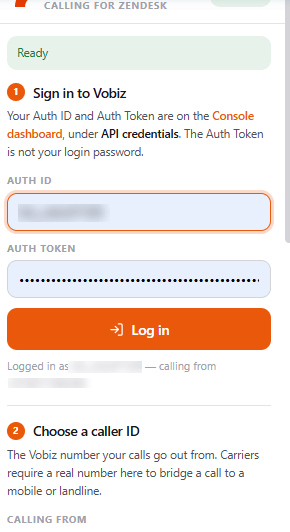
**Wait for Ready before dialling.** The Call button stays disabled until the SIP endpoint registers, precisely so you cannot dial into a dead bridge.
Pick the number to call from. **Calling from** lists every number on the account.
**Packaging needs two files the repository does not ship:** `assets/logo-small.png`, which Zendesk requires, and a top-bar icon at `assets/icon_top_bar.svg`. Add your own branding before packaging.
## App settings
Set in **Zendesk → Admin Center → Apps → Vobiz Calling App → Settings**:
| Setting | Required | Purpose |
| - | - | - |
| `backend_url` | Yes | Public HTTPS base URL of your backend |
| `agent_id` | Yes | The label this agent signs in as. **One per agent** |
| `zendesk_subdomain` | No | Only if the backend writes call logs instead of the app |
| `zendesk_email` | No | Paired with the API token |
| `zendesk_api_token` | No | Stored as a **secure** setting |
## Backend routes
Full request and response shapes are in the repository's [backend contract](https://github.com/vobiz-ai/Vobiz-Zendesk-Calling/blob/main/docs/backend-contract.md). In summary:
| Route | Called by | Purpose |
| - | - | - |
| `GET\|POST /answer`, `/inbound-answer` | **Vobiz** | The XML Vobiz executes. One handler, branching on direction |
| `GET\|POST /dial-status` | **Vobiz** | The `action` target of `` — how the call ended |
| `GET\|POST /recording-ready` | **Vobiz** | Fires when the recording file is downloadable |
| `POST /login`, `/logout`, `GET /session` | Browser | Session handling — the Auth Token is exchanged for a bearer session token |
| `GET /agent` | Browser | The SIP identity the panel registers with. **Behind the session** |
| `GET /numbers`, `POST /select-number` | Browser | Caller IDs available, and the one in use |
| `GET /call-record` | Browser | Polled after hangup to build the ticket log entry |
| `GET /recordings`, `/recording-audio/:id` | Browser | Recording list and playback |
| `POST /sync-call` | Browser | Writes the call log into Zendesk and mints the recording link |
| `POST /setup` | Browser | Creates the application, binds the endpoint, attaches the DID |
| `POST /transcription-ready` | Webhook | Appends an AI transcript as a private comment |
| `GET /health` | — | Resolved configuration |
**`GET /agent` is behind the session on purpose.** An earlier build served it unauthenticated *and* invented an agent for any unknown id, so `GET /agent/anything` handed a live SIP password to anyone who knew the backend URL. Read the repository's [SECURITY.md](https://github.com/vobiz-ai/Vobiz-Zendesk-Calling/blob/main/SECURITY.md) before deploying.
**The backend is bound to one account.** `/login` rejects an Auth ID that is not the one in its `.env`, and says so by name — the SIP endpoint it bridges to and the caller ID it dials from both belong to that account, and Vobiz rejects a `from` number the account does not own.
## How a call reaches a ticket
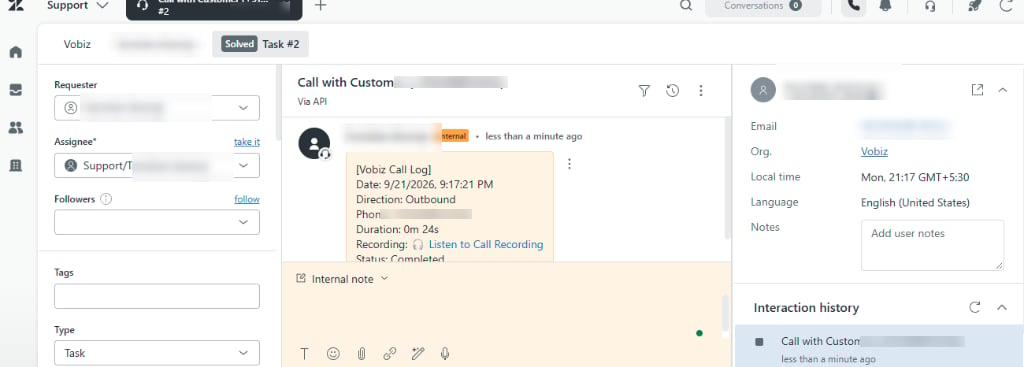
There is no Zendesk "call" object available to a normal app, so calls are recorded as ordinary tickets and comments. The app resolves the ticket the agent clicked from, else whatever `ticket_sidebar` reports, then posts to `/sync-call`, which either comments on that ticket or creates a new one.
If the backend write fails, the app falls back to writing through the agent's own Zendesk session. That fallback is the better path in one respect worth knowing: it attributes the comment to **the agent**, whereas the backend path attributes everything to a single shared API user.
Screen pop is a ZAF search from the browser — a `type:user phone:…` query, then `routeTo` the matched user.
The comment itself is a structured call log, with the recording behind the signed link:
|")
│
the ticket gets: {backend}/recording-audio/?exp=…&sig=…
│
verify constant-time compare, expiry checked, then the audio is
fetched from Vobiz server-side and streamed back
```
` element cannot send an Authorization header — the signature is what stands in for the session.
**The link carries no credentials and takes no caller-supplied URL.** Both matter: an earlier generation of this pattern accepted a `url` parameter and fetched it with the account's Vobiz credentials attached, which is a credential-exfiltration primitive any web page could drive.
Set `SIGNING_SECRET` explicitly. Without it a random key is generated at each boot and every link written before the last restart stops resolving. See [call recording](/docs/recording) for what is retained on the platform side.
## Where credentials live
| Credential | Where it lives | Notes |
| - | - | - |
| Vobiz Auth ID / Token | The agent's browser session | Sent per request. Never stored server-side, never in a ticket |
| SIP password | `backend/.env` | Server-side only, and served to the panel only behind a session |
| Recording token key | `RECORDING_TOKEN_SECRET` | Encrypts credentials into recording links |
| Zendesk API token | Zendesk app setting, marked `secure` | Optional. Only if the backend writes logs itself |
The deliberate trade-off: **agents type their own Vobiz credentials into the panel.** That keeps one shared account token out of the app, but the credentials do pass through the backend on each request — so the backend must be trusted and reachable only over HTTPS.
## Troubleshooting
| Symptom | Cause | Resolution |
| - | - | - |
| "Registration failed" | SIP credentials wrong or missing | Check `VOBIZ_SIP_USER` holds the username **Vobiz stored**, not the one you submitted — the numeric suffix is required |
| Customer answers, hears silence, call drops | The SIP endpoint was not registered when the call bridged | Keep the softphone open and registered before dialling. The CDR shows `End Of XML Instructions` |
| Call never connects, nothing in the backend log | Vobiz could not reach the webhook | `curl` the `/answer` check from Step 3 outside your network. If the tunnel restarted its hostname changed — update `PUBLIC_BASE`, `backend_url` and the application's `answer_url` together |
| Customer answers, hears ringback, then *"the agent could not be reached"* | A dead or stale answer URL | The same `/answer` check. It must return `` |
| One call dials the customer repeatedly | `` has no `action`, or `redirect="false"` is missing | Both are required |
| Call fails immediately as *Busy* | Often the nested `` form rather than a real busy | `` must be a self-closing sibling **before** `` |
| CDR billed `0s`, or no CDR at all | SDP/ICE, or session timers | `session_timers: false` and `pcConfig.iceServers` are both mandatory client-side |
| Call logs create a new ticket instead of using the open one | The `ticket_sidebar` location is missing, or the agent is not on a ticket page | Confirm all three locations installed |
| "This recording link is invalid or has expired" | Link older than the TTL, or the backend restarted without `RECORDING_TOKEN_SECRET` | Set the secret in `.env` — regenerating the key invalidates every link ever issued |
| Calls ring the wrong agent | Two agents share one SIP endpoint | Each agent needs their own `agent_id` and their own SIP endpoint |
| A typo in `agent_id` silently routes to the wrong endpoint | Unknown IDs fall back to a synthesised agent rather than returning 404 | Convenient in development, worth tightening in production |
## Scope today
The app is a working softphone plus ticket logging. Not yet built: hold, mute, transfer and conference; routing a call to an agent's mobile instead of the browser (the backend's `` branch is ready, the UI is not); and Talk Partner Edition reporting, since logs go through the standard Tickets API. It installs as a private app rather than from the Zendesk Marketplace.
## Next steps
* Clone the app and backend: [vobiz-ai/Vobiz-Zendesk-Calling](https://github.com/vobiz-ai/Vobiz-Zendesk-Calling)
* Read the [`` reference](/docs/xml/dial), [``](/docs/xml/dial/user) and [``](/docs/xml/dial/number)
* Create the agents' SIP endpoints: [Endpoints API](/docs/endpoint) or [console guide](/docs/platform/voice/endpoints)
* Same pattern in another helpdesk? See [Freshdesk](/docs/integrations/freshdesk)
This documentation is built and hosted on [Mintlify](https://mintlify.com), a developer documentation platform. 

 A softphone in the Zendesk top bar. Agents place and take real phone calls in the browser, see who is calling before they answer, and every call is written to the ticket they are working on.
**Source code:** [vobiz-ai/Vobiz-Zendesk-Calling](https://github.com/vobiz-ai/Vobiz-Zendesk-Calling) — the ZAF v2 app and the Node backend used throughout this guide. Both ship in the one repository.
A softphone in the Zendesk top bar. Agents place and take real phone calls in the browser, see who is calling before they answer, and every call is written to the ticket they are working on.
**Source code:** [vobiz-ai/Vobiz-Zendesk-Calling](https://github.com/vobiz-ai/Vobiz-Zendesk-Calling) — the ZAF v2 app and the Node backend used throughout this guide. Both ship in the one repository.
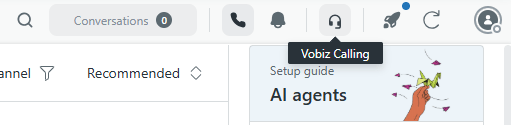 ## Step 5: Place a test call
Open the softphone from the top bar. It opens on a **CONNECTING** badge while the SIP stack registers.
## Step 5: Place a test call
Open the softphone from the top bar. It opens on a **CONNECTING** badge while the SIP stack registers.
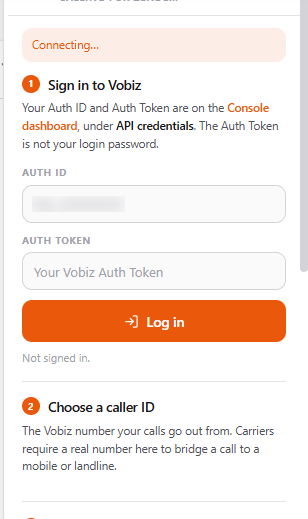 Enter your Vobiz **Auth ID** and **Auth Token** — from the [console](https://console.vobiz.ai) under **API credentials**, not your login password — and sign in.
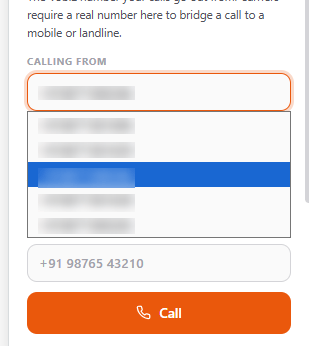 Type a number in E.164 format — or click any phone number in Zendesk and the panel dials it.
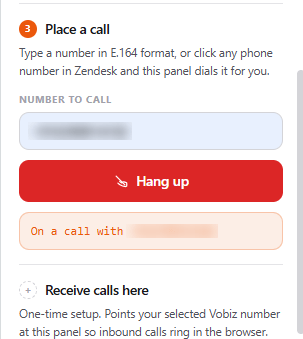 Confirm it landed in Vobiz with [`GET /Call/`](/docs/call/make-call), or read the [CDR](/docs/cdr/get-cdr).
### Inbound
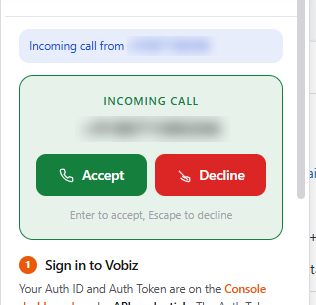
A call to the attached DID raises a prompt in the panel and a Zendesk notification. **Enter** accepts, **Escape** declines.
Confirm it landed in Vobiz with [`GET /Call/`](/docs/call/make-call), or read the [CDR](/docs/cdr/get-cdr).
### Inbound
A call to the attached DID raises a prompt in the panel and a Zendesk notification. **Enter** accepts, **Escape** declines.
 ## Installing permanently
`zcli apps:server` serves the app to *your* browser only, for as long as it runs. To install it for the whole account:
```bash theme={null}
cd zendesk-app
npx @zendesk/zcli apps:package
```
Upload the resulting zip under **Admin Center → Apps and integrations → Zendesk Support apps → Upload private app**, then fill in the settings below. You also need a stable `backend_url` — a quick tunnel is not good enough.
## Installing permanently
`zcli apps:server` serves the app to *your* browser only, for as long as it runs. To install it for the whole account:
```bash theme={null}
cd zendesk-app
npx @zendesk/zcli apps:package
```
Upload the resulting zip under **Admin Center → Apps and integrations → Zendesk Support apps → Upload private app**, then fill in the settings below. You also need a stable `backend_url` — a quick tunnel is not good enough.
 ## Recording links
A recording link written into a ticket is readable by every agent, every export and every audit log, forever. It therefore cannot carry credentials.
```text theme={null}
sign HMAC-SHA256(SIGNING_SECRET, "
## Recording links
A recording link written into a ticket is readable by every agent, every export and every audit log, forever. It therefore cannot carry credentials.
```text theme={null}
sign HMAC-SHA256(SIGNING_SECRET, " Links expire after `RECORDING_URL_TTL_SECONDS` (300 by default). Playback is **signature-gated rather than session-gated**, because an `